Best Visual Timer for ADHD Adults (2026)
The best visual timer for ADHD adults depends on where you work. We compare Time Timer, iPhone visual timer apps and Meltime on visibility, sound and price.
The short answer
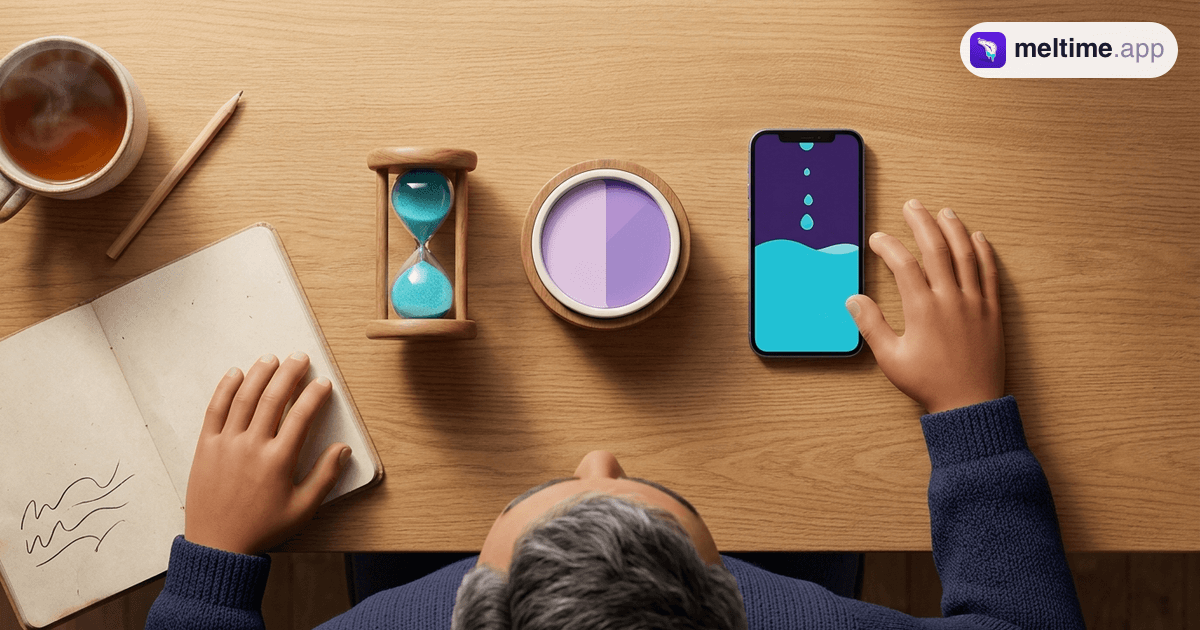
If you work at one desk and want something you never have to unlock, the best visual timer for ADHD adults is a physical disk timer like the Time Timer MOD. If you work from your phone, move between rooms, or want the countdown to follow you onto the Lock Screen, an iPhone visual timer app is the better pick, and the deciding feature is whether it keeps showing time after you leave the app.
Most guides for "visual timers for ADHD" are written for parents and classrooms. This one is for adults with meetings, deep-work blocks and a phone that pulls them away every few minutes.
A note on expectations. Research does support the idea that time is genuinely harder to track with ADHD. A 2021 meta-analysis of 55 studies by Marx and colleagues found timing deficits in people with ADHD across every type of timing task it looked at, as summarised by the ADHD Evidence Project. A 2023 review focused on adults, Time Perception in Adult ADHD: Findings from a Decade, opens with "Time perception is impaired in adult ADHD," while also noting that the adult research base is small and the methods vary. A visual timer doesn't treat any of that; it just puts the passing of time where you can see it. If lost time is affecting your work or health, talk to a clinician who knows adult ADHD.
What adults need from a visual timer
Kids' timers optimise for bright colours and big buttons. Adults need something else. Check these first.
- Readable from across the desk. You should see roughly what's left from the edge of your vision, without reading digits. A shrinking disk, draining ring or filling shape works; a small number in the corner doesn't.
- Silent while running. Ticking gets old fast in an open office or on a call. Check whether the end alert can be turned off or softened too.
- Still visible when you leave. If you switch to email and the timer disappears, it can't help you. On iPhone, look for a Live Activity, which keeps the countdown in the Dynamic Island and on the Lock Screen. Our guide to putting a timer on the iPhone Lock Screen explains how that works.
- The right length range. Some timers top out at 60 minutes, some at 120, some have no stated limit. Match it to how you actually work.
- Low setup friction. If starting a session takes six taps, you'll skip it on bad days. Presets and one-tap starts matter.
- A price model you're happy with. One-off purchase, subscription, free with limits, or completely free. All fine, as long as you know which.
- Your platform. A physical timer works with any phone. Most of the apps below are iPhone-only, so Android users should lean physical.
For the research on why seeing time beats reading it, see why visual timers help you focus.
Physical visual timers: Time Timer and similar
The Time Timer is what most people picture: a coloured disk that shrinks as time runs out. On its ADHD page, Time Timer says its timers count down "with no loud ticking," and as of November 2026 it lists the Time Timer MOD Home Edition at $24.95 as a 60-minute visual timer. The same page lists MOD Education Editions in 10, 30 and 120-minute versions and a PLUS 20-minute model.
Where a physical timer wins:
- It works without your phone, so the phone can stay in a drawer.
- It's always on: nothing to unlock or reopen.
- It's platform-free, the obvious choice on Android.
- A 120-minute model covers long sessions that many apps don't.
Where it falls short:
- It stays on the desk. Walk to the kitchen and you lose sight of it.
- Setting an odd duration like 37 minutes means eyeballing a dial.
Other brands make disk-style timers too. They follow the same idea; check whether they tick before you buy.
iPhone visual timer apps compared
Everything below comes from each app's US App Store listing as of November 2026; prices vary by country and can change.
| App | How it shows time | Keeps showing after you leave the app? | Price model (US) |
|---|---|---|---|
| Time Timer | The classic red disk, custom colours | Listing doesn't mention a Live Activity | Free, $9.95 in-app unlock |
| Timefall | Falling spheres driven by a physics engine | Dynamic Island and Live Activities | Free, Pro $0.99/month, $7.99/year or $14.99 lifetime |
| Feltime | Draining ring free; more styles in the unlock | Live Activity, Dynamic Island and widget are listed in the paid unlock | Free, $6.99 one-time unlock |
| TimeSee | Shrinking ring, filling circle, bar, clock face | Listing doesn't mention a Live Activity | Free, no in-app purchases |
| DuePal | Countdowns to milestones in your day | Dynamic Island and Lock Screen Live Activity | Free tier, Premium from $3.99/week to $39.99 lifetime |
A few details beyond the table:
- Time Timer is the most established app here, rated 4.6 from about 15,000 ratings. It runs on iPhone, iPad, Mac and Apple Watch, lets you run several timers at once, and the listing says free users can choose any duration.
- Timefall logs sessions to Apple Health as Mindful Minutes and supports custom focus and break intervals for Pomodoro.
- Feltime has three modes, including a count-up "awareness" mode with gentle reminders of elapsed time.
- TimeSee has an overtime mode that keeps counting after zero, so you can see how long a task really took.
- DuePal is a different kind of tool: you set times like stand-up or lunch, and it counts down to the next one. Better for leaving on time than for a focus block.
Meltime: liquid that fills the screen
Meltime is the iPhone app we make, so weigh this section with that in mind. It shows time as liquid: drops fall from the Dynamic Island and the screen fills as the session runs. You read what's left the way you'd read a glass of water.
What it does well for adults:
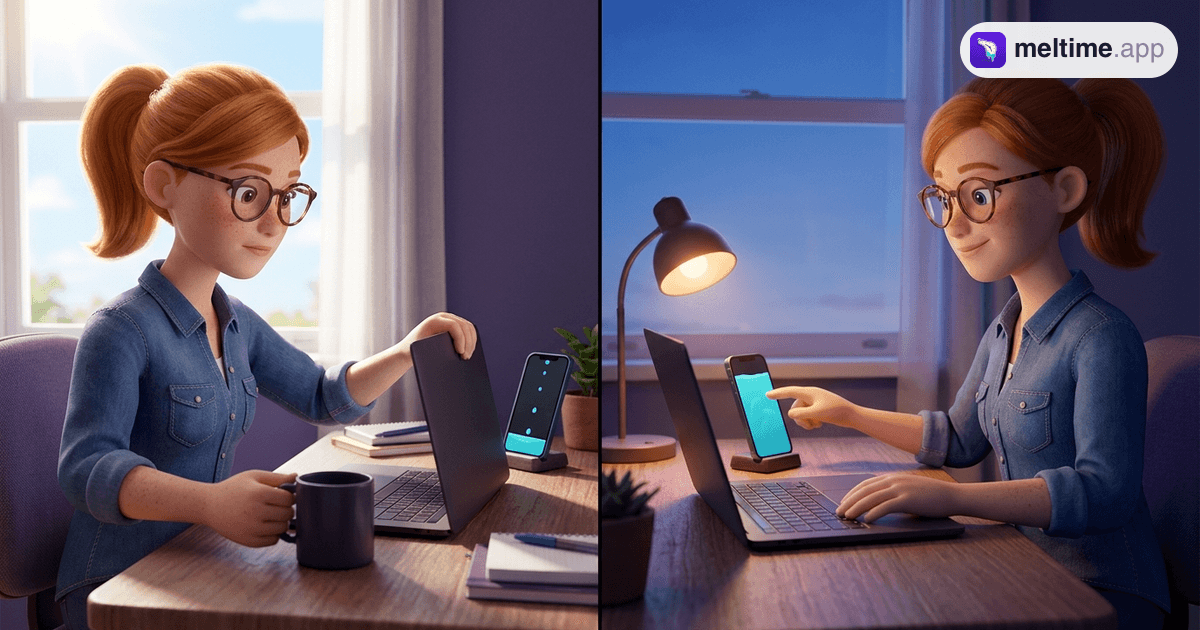
- Live Activity, free. When you leave the app, the countdown stays in the Dynamic Island as a small progress ring with the time, and on the Lock Screen as a card with a ring, countdown and progress bar. There are no pause buttons in the Live Activity; tapping it opens the app. Setup is covered in our Dynamic Island and Live Activity guide.
- Fast starts. You set the time by dragging around a radial dial, save it as a preset with its own colours, then tap the preset and tap the time to start.
- Pomodoro and Breathe. Pomodoro has dials for focus, rest and up to 10 cycles, and the liquid melts away during the break. Breathe mode covers box, triangle, 4-7-8 and coherent breathing.
- Free background noise (white, pink, brown) and no account.
Where it's honestly not the right pick:
- Sessions are capped at 60 minutes. If you work in 90 or 120-minute blocks, a 120-minute physical timer or an app without that cap suits you better. A 50-minute block fits fine, as in the 52/17 Pomodoro alternative.
- iPhone only, iOS 26 required (iPhone 11 and newer). It isn't available on Android, Apple Watch, Mac or the web.
- One timer at a time. If you juggle a laundry timer and a focus block together, Time Timer's multiple timers are a better fit.
- The free plan has daily limits: 3 timers, 1 Pomodoro and 1 Breathe session a day, and 1 preset. Pro (monthly, yearly or a one-time Lifetime purchase) removes them and adds more liquid styles, nature sounds and longer-range stats.
Which visual timer should you pick?
| Your situation | Best fit |
|---|---|
| You use Android, or want your phone out of sight | A physical disk timer like Time Timer MOD |
| You work in blocks longer than 60 minutes | Time Timer MOD 120 Minute, or the Time Timer app (any duration) |
| You want the classic disk on your phone and Watch | Time Timer app |
| You keep losing track once you switch apps | An app with a Live Activity: Meltime, Timefall, DuePal (or Feltime's unlock) |
| You want a free app with no purchases at all | TimeSee |
| Your problem is leaving on time, not focusing | DuePal |
| You want time to look calm and fill the whole screen | Meltime |
How to get more out of any visual timer
- Put it in your peripheral vision. Next to the monitor, not behind it. For phone timers, make sure the Live Activity is on so it follows you.
- Start it before you start the task. Starting the timer becomes the first step.
- Use two or three fixed lengths. Save them as presets so you don't have to decide each time.
- Check estimates afterwards. If a "10-minute" email took 25, note it.
- Pair it with a cue. Same drink, same playlist, same timer. Our time blindness strategies cover more ways to keep time visible through the day.
FAQ
What is the best visual timer for adults with ADHD?
It depends on where you work. A physical disk timer such as the Time Timer MOD is best if you sit at one desk or use Android. An iPhone app with a Live Activity is best if you move around or work from your phone, because the countdown stays on the Lock Screen and in the Dynamic Island.
Is there a visual timer app for iPhone that shows on the Lock Screen?
Yes. As of November 2026, Meltime, Timefall and DuePal list Lock Screen or Dynamic Island Live Activities, and Feltime lists them in its paid unlock. The Time Timer and TimeSee listings don't mention one.
Do visual timers help with ADHD?
They don't treat ADHD. Research shows time perception is often harder with ADHD, and a visual timer makes the passing of time visible instead of leaving you to sense it. If time keeps slipping away, a clinician who knows adult ADHD can help with the bigger picture.
How do visual timers work?
They show remaining time as a shape that shrinks or fills: a disk, a ring, a bar or liquid. You judge what's left by size instead of reading digits.
Are physical visual timers silent?
Time Timer says its timers count down with no loud ticking. Other brands vary, so check for ticking before you buy.
Related guides
How to Manage Time Blindness: 9 Tools That Work
How to manage time blindness with 9 practical tools: visual timers, lock screen countdowns, estimate logs, transition buffers and more, with research sources.
Read more →
Why Visual Timers Help You Focus (Research)
Visual timers reduce clock-checking, ease time blindness, and quietly anchor attention. Here's what the research says about why visible time works.
Read more →
How to Keep a Timer on Your iPhone Lock Screen
How to keep a timer on your iPhone Lock Screen: start it in Clock, fix a Live Activity that will not show up, and keep the countdown visible while you work.
Read more →